GUI: Interactive Playback
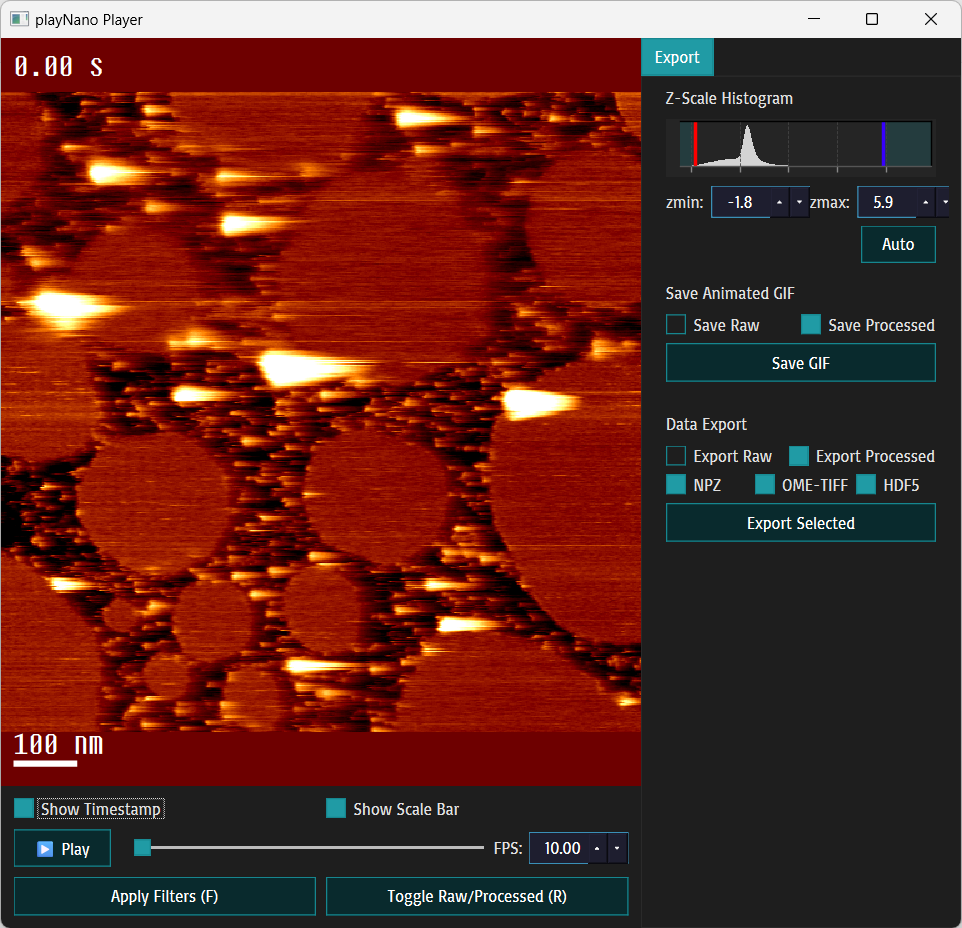
The playnano play subcommand launches the interactive playNano GUI -
a PySide6 application for browsing, filtering, visualising, and exporting
AFM stacks.
Overview
The GUI provides:
Playback controls - play / pause, FPS control, and frame slider.
Filter application - run a pre-configured processing pipeline on demand and update the processed view.
Raw vs processed views - toggle between original frames and a flattened (processed) version produced by the Processing pipeline.
Annotations - timestamp and scale-bar overlays (configurable length).
Interactive Z-scale histogram - draggable zmin / zmax lines, “Auto” reset, and numeric spin boxes for precise control.
Colormap selection - choose from new, optimised, playNano colourmaps or built-in Matplotlib colormaps for the viewer and exports.
Export panel - save animated and annotated videos, GIFs and image sequences or processed data bundles (NPZ, OME-TIFF, HDF5).
Command-line access
The GUI is launched via the playnano play command:
playnano play /path/to/afm_file.h5-jpk \
    [--channel CHANNEL] \
    [--processing PROCESSING_STEPS_STR | --processing-file PIPELINE_FILE] \
    [--output-folder OUTPUT_DIR] \
    [--output-name BASE_NAME] \
    [--scale-bar-nm SCALE_BAR_INT] \
    [--zmin MIN_Z] \
    [--zmax MAX_Z]
Arguments & common options
input_file (str, required) Path to an AFM file (e.g.
.h5-jpk) or a folder of frame files.–channel (str, default:
height_trace) Which channel to display.–processing (str) Inline processing pipeline, e.g.
"remove_plane;gaussian_filter:sigma=2.0". Mutually exclusive with--processing-file.–processing-file (YAML/JSON) Path to a processing YAML with the filters to apply on load.
–output-folder (str) / –output-name (str) Base folder/name for exports created from the GUI.
–scale-bar-nm (int, default=100) Length of the scale bar drawn on images (set
0to disable).–zmin, –zmax (float or str, optional) Initial display z-limits. Use the string
"auto"to automatically set 1st / 99th percentiles.–fps (float, optional) Inital frame rate in the viewer, if left blank the frame rate is calculate from line_rate` value in the frame_metadata dictionary of the first frame.
Main window
Viewer Panel (left) - rendered AFM frames (raw or processed) with overlays. Playback controls and filter buttons are located below the viewer.
Right-side tabs - includes: - Z-Scale Histogram with draggable vertical lines and spin-boxes for zmin (red) and zmax (blue). - Colormap Selection for viewer and exports. - Animated Export: choose raw/processed and save an annotated animated GIF, video or image sequence. - Data Export: pick formats (NPZ, OME-TIFF, HDF5) and export raw or processed data.
Keyboard shortcuts
Space - play / pause
F - apply filters (run configured processing pipeline)
R - toggle raw / processed view
G - export the current view as a GIF (honours timestamp/scale settings)
E - export data (NPZ / OME-TIFF / HDF5) in the checked formats
Raw vs Processed data behaviour
If the loaded stack contains a saved
"raw"snapshot (e.g. when loading a bundle), the GUI treats that snapshot as the unprocessed data andstack.dataas the processed/flattened frames. Otherwisestack.datais considered the raw frames.Applying filters via Apply Filters (F) runs the processing pipeline and updates the processed view. After applying filters, the GUI switches to the processed view by default, and export options for processed data become available.
Export behaviour & filenames
Animated data: (GIF, MP4, AVI, folder of PNGs) - the exported file/folder name / save location is derived from
--output-name/--output-folderrespectively or defaults to anoutputsubfolder in the working directory. Animated export requires some metadata (for exampleline_rate) to create timing information - if that metadata is missing export may fail (check logs).Data bundles: (NPZ, OME-TIFF, HDF5) - exports include processing metadata, provenance information, and snapshots (raw + intermediate processed steps, when available).
Animated export annotations and frame rate
Any visual annotations you see in the viewer are burned into exported GIFs, videos and exported frame sequences (other than the RAW label). That means the exported animation reflects the current viewer display - it is not an independent overlay file.
For GIF and video exports the frame rate of the export reflects whatever the current FPS value in the playback control is.
What is included
Timestamps - if the
Show Timestampcheckbox is enabled, the frame timestamp displayed in the viewer will be drawn into every exported frame.Scale bar - if the
Show Scale Barcheckbox is enabled, the scale bar and the current--scale-bar-nmlength are drawn into the video/frame sequence.Raw / Processed selection - the exported animation uses whichever source (raw or processed) is selected in the animated data export radio buttons and rendered with the selected colormap.
Current z-range - the exported animation uses the zmin / zmax values visible in the histogram / spinboxes at the time of export. If you have adjusted the draggable lines or spinboxes, the exported frames reflect those settings.
How to control annotations
Use the viewer checkboxes to toggle annotations before export: - Uncheck Show Timestamp to remove timestamps from the exported animation. - Uncheck Show Scale Bar (or set
--scale-bar-nmto0) to remove the scale bar.Choose Save Raw or Save Processed in the animated data export panel to pick the data source. - The RAW label that appears in the viewer when raw data is selected is not included in the exported animation.
Use the histogram or spinboxes to set the precise z-range that will be used in the exported animation.
Troubleshooting & tips
PySide6 installation: binaries are available on PyPI and conda-forge. If you have trouble installing via pip, try installing via conda:
conda install -c conda-forge pyside6
Headless Linux / CI: GUI tests or GUI runs on headless systems require a virtual framebuffer (
xvfb-run) or setting up an off-screen QPA platform plugin.GIF export issues: check the console output for missing metadata (
line_rate, timestamps). Export will still succeed for static stacks, but timing annotations may be incorrect or omitted without frame timing metadata.
Notes & links
See Processing for processing steps and masks used by the GUI.
See Exporting Data for details on GIF and data bundle exports.
See Command Line Interface (CLI) for the full list of CLI options and non-GUI modes.